Quick Start Guide
Welcome to RKPi5! This guide will help you get started with your device in under 5 minutes.
ℹ️
Beta Documentation
This documentation is still being developed during our beta program. Content may be altered, added, or removed based on real user experiences and feedback. If you are looking for the actual build instructions to make those microSD images, you are in the wrong section. This section is designed for people that already have a Raspberry Pi5 and just need the microSD card to be inserted.
Common to all RKPi5 configurations
⚠️
Important
Inserting a microSD image the correct way is critical
- You should have received one, or better two, microSD cards. The image is pre-configured. It includes the latest Raspberry Pi Trixie 64-bit operating system, plus the Rapture Kit 3.1 content, plus the modifications from the scripts used to setup the captive Wi-Fi portal on your Pi.
- First, if the Pi is running, shut it down by holding the power button for 5 seconds. The LED light should turn from green to red.
- Only when the LED is red should you disconnect the USB-C power cable. Your power cable might be from an AC power supply from the Pi kit vendor, or from a battery pack you own. The goal is to remove power to reduce the risk of an unsafe discharge that might affect the microSD card, or the Pi's integrity.
- If there is a microSD card in the Pi already, you must carefully remove it, use your finger nail and back it out. These cards fit very snugly into the underside of the Pi. Once you hook a thumbnail in the subtle notch and pull directly out, you should be able to extract the card.
- With the new preinstalled microSD card, insert it carefully into the Pi. Note that it goes in with the gold leads facing up. There is only one way it goes in. Don't force it in, you are likely to damage the card if you are rough.
- Now, re-insert the power supply cable or the battery pack USB-C power cable.
- The Pi will start on its own when power is connected. When fully booted, about 60-90 seconds, the LED light will turn green.
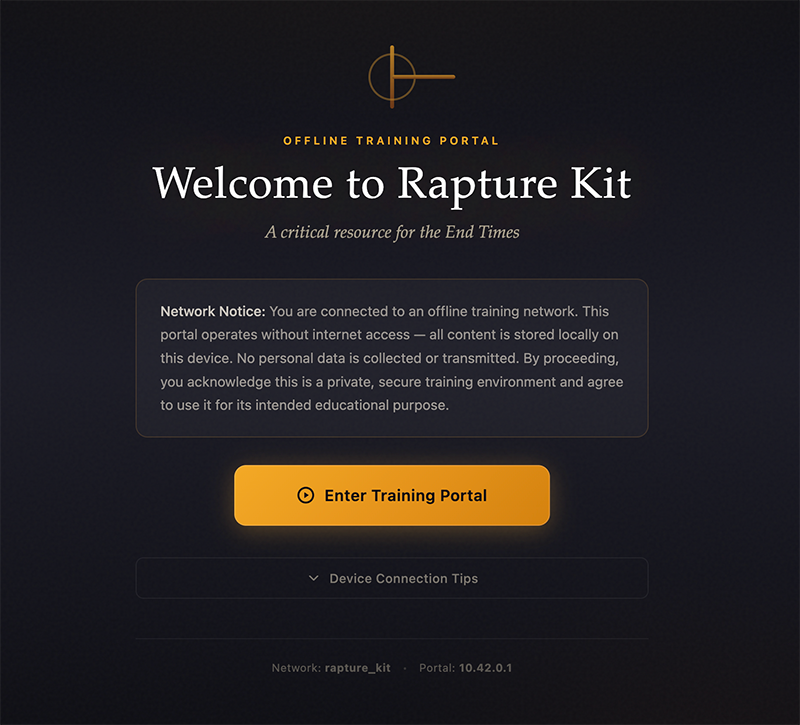
- The Pi should begin broadcasting a hotspot Wi-Fi connection. The name of the hotspot is 'rapture_kit' and it is intended to be provocative. We want people browsing for available Wi-Fi connections to be intrigued by the name.
- You can join the 'rapture_kit' hotspot when you are ready to. You can use any device or operating system. This includes PCs, Macs, iOS phones, tablets, or Android phones or tablets.
The Captive Hotspot Wi-Fi Portal
Next Steps
Once connected, you can:
- Browse Biblical Resources
- Read from several Bibles
- Watch Sermon Series (in video or audio)
- Read articles and books
- Complete Content Breakdown
Need Help?
If you encounter any issues during setup:
- Check the Troubleshooting Guide
- Review System Requirements
- Contact Support
This is placeholder content. Detailed instructions with screenshots will be added during beta testing.